36. Trade System
The Trade System allows two players to exchange Items and Zen directly with one another in MU MAX Age. The system incorporates a two-step confirmation process to minimize mistakes and provide a secure trading experience.
Players can initiate a trade by pressing Alt + Right Click on another player and selecting Trade.
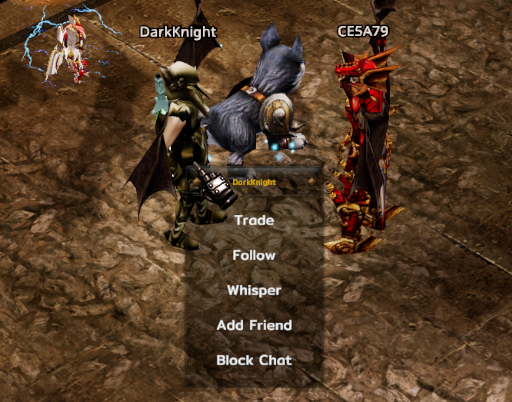
Trade Request
When a player sends a trade request, the recipient receives a confirmation window and a 5-second response timer begins.
The recipient may choose one of the following options:
-
Accept — Accept the trade request.
-
Decline — Decline the trade request.
If the recipient does not respond before the timer expires, the trade request is automatically cancelled.
While a player has a pending trade request or is already engaged in a trade, additional trade requests from other players are automatically blocked.
Trade Window
Once both players agree to trade, the Trade Window opens automatically alongside each player's Inventory.
Each player may only modify their own side of the Trade Window and cannot alter the items or Zen offered by the other party.
Items can be added to the trade by either left-clicking or right-clicking them from the Inventory.
Zen can be added by selecting the Zen icon within the Trade Window.
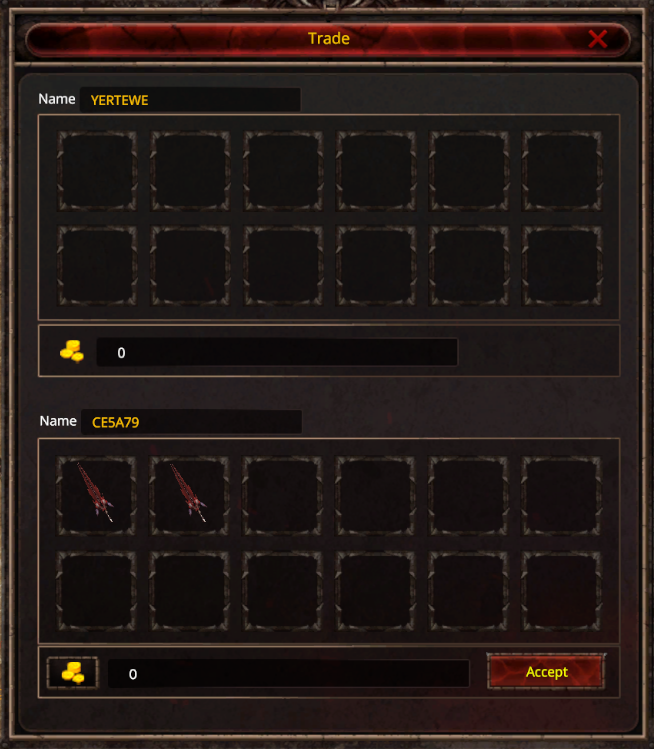
Trade Confirmation
After reviewing the offered items and Zen, each player may press Confirm to lock in their offer.
Once Confirm is selected:
-
The player's trade offer becomes locked.
-
Items and Zen can no longer be added, removed, or modified.
Pressing Confirm again unlocks the offer.
If either player modifies their trade offer after unlocking, both confirmation states are automatically cancelled, requiring both players to confirm again.
The trade is completed only after:
-
Both players have confirmed their offers.
-
The system verifies that both players have sufficient Inventory space to receive all traded items and Zen successfully.